What Is DPI and Does It Matter for Screens

DPI, dots per inch, controls how large a fixed number of pixels prints on paper. It does not affect how an image looks on a screen at all, since a screen just displays the pixels it is given at whatever size the layout tells it to, completely ignoring any DPI value stored in the file. DPI only matters the moment ink meets paper: a print job, a photo lab order, or a passport photo application that checks the file's metadata before accepting it, all of which read that stored number directly.
A worked example
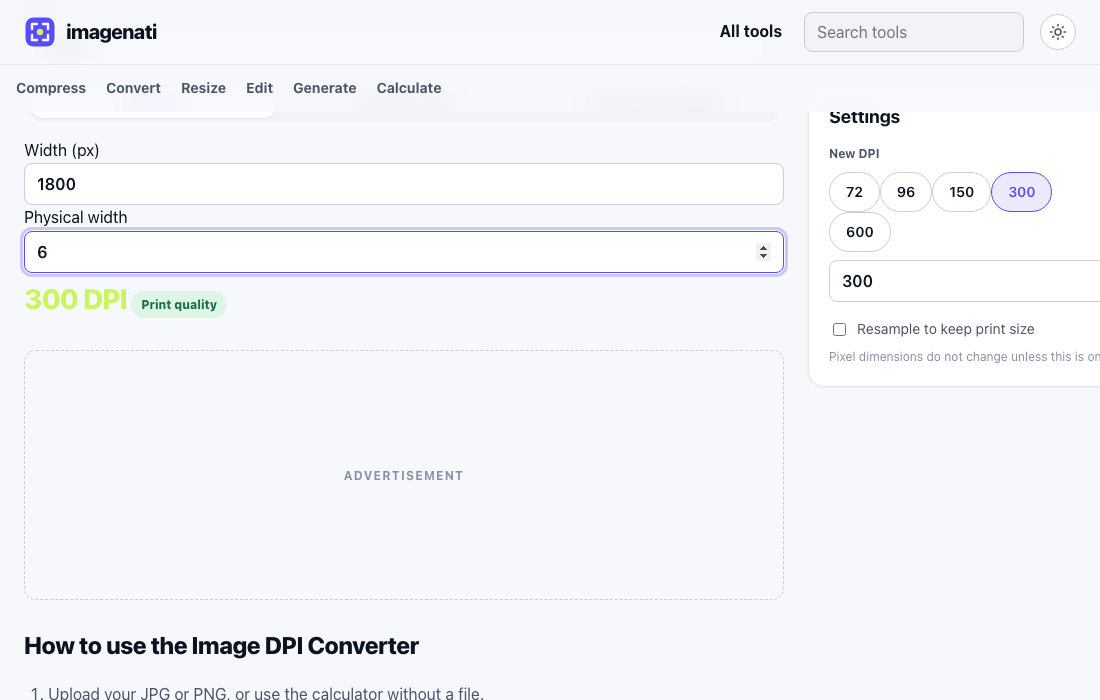
Take an image that is 1800 pixels wide. At 300 DPI, the standard for a sharp printed photo, that same 1800 pixels prints at 6 inches wide, since 1800 divided by 300 equals 6. Tag that identical file at 72 DPI instead, the old standard for screen resolution, and the pixel count has not changed at all, but the file now claims to print at 25 inches wide, since 1800 divided by 72 is 25. Same pixels, same on screen appearance, wildly different printed size, purely because of one metadata number.
Why a screen ignores DPI completely
A monitor or phone screen has a fixed grid of physical pixels, and a browser or image viewer maps an image's own pixels onto that grid directly, at whatever display size the page's layout specifies in its own units, not the units DPI is measured in. The DPI value sits in the file's metadata unused for this purpose; nothing about how a browser renders a JPG or PNG reads it. This is the single most common DPI misunderstanding: setting an image's DPI to 300 does nothing to make it look sharper or more detailed on a screen, because pixel count, not DPI, is what determines on screen sharpness.
When DPI actually matters
Print is the one place DPI genuinely controls something real. A print driver or a photo lab's own software reads the DPI value to decide how large to physically print a given number of pixels, which is exactly the calculation in the worked example above. Get the DPI wrong on a file headed to print, and the physical output size is wrong even though the pixel data itself is perfectly fine, which is why passport photo services, some print shops, and print-ready templates specifically ask for a file tagged at 300 DPI rather than just a pixel size.
300, 150 and 72: what the common numbers mean
| DPI | Typical use |
|---|---|
| 300 | Standard for sharp printed photos and documents, including passport photos |
| 150 | Acceptable for a larger print viewed from further away, like a poster |
| 72 or 96 | Historic screen resolution standard; irrelevant to how sharp an image looks on a modern screen |
72 and 96 DPI persist mostly out of habit, inherited from decades old screen hardware, rather than reflecting anything about current displays, which vary enormously in their own actual pixel density. A file's DPI tag being 72 does not mean it looks worse on screen than the same file tagged 300; the pixel data is identical either way, and only the print calculation changes.
Why so many images have no DPI set at all
A camera, a screenshot tool, or a browser saving an image often does not bother writing a DPI value into the file at all, since it has no bearing on how the image displays digitally. That is not a corrupted or broken file; it just has nothing in that particular metadata field, which only becomes a problem the moment something downstream, most commonly a print job or an application form, specifically checks for a DPI value and rejects a file that does not have one. Checking a file's current DPI first, before assuming it needs fixing, avoids doing unnecessary work on a file that was already fine.
DPI versus PPI, and why both terms get used
Strictly, DPI (dots per inch) describes a printer's output, how many ink dots it lays down per inch, while PPI (pixels per inch) describes an image file's own pixel density. In practice the two terms get used interchangeably almost everywhere, including inside most image editing software and most passport photo or print requirements, since a 300 PPI image printed on a 300 DPI printer is exactly the calculation this guide has been describing throughout. Do not worry about the terminology distinction for practical purposes; a rule asking for 300 DPI and a rule asking for 300 PPI mean the same thing here, and both describe the same pixels-to-inches relationship.
Working out print size or pixels needed ahead of time
The same relationship between pixels, physical size and DPI works in any direction, which is useful before a file even exists. Given a pixel size and a DPI, the calculator works out the physical print size that combination produces. Given a target physical size and a DPI, such as needing a 4 x 6 inch print at 300 DPI, it works out the exact pixel dimensions to scan, photograph or export at to hit that target cleanly, which is useful for planning a scan resolution or an export setting before running the job, rather than finding out afterward that the file came out the wrong physical size.
Setting DPI without losing pixels
Changing an image's DPI value does not have to change its pixel dimensions. The DPI Converter writes a new DPI into a JPG or PNG's own metadata directly, leaving the pixel data untouched by default, which is the right move when a form just wants to see 300 in the file's metadata and does not actually need a different resolution. Turning on the optional resample setting instead recalculates the pixel dimensions so the image keeps the same physical print size at the new DPI, which is a different operation for a different situation, typically when the printed size itself, not just the metadata, needs to change.