How to Reduce a Photo to 100 KB for Online Forms

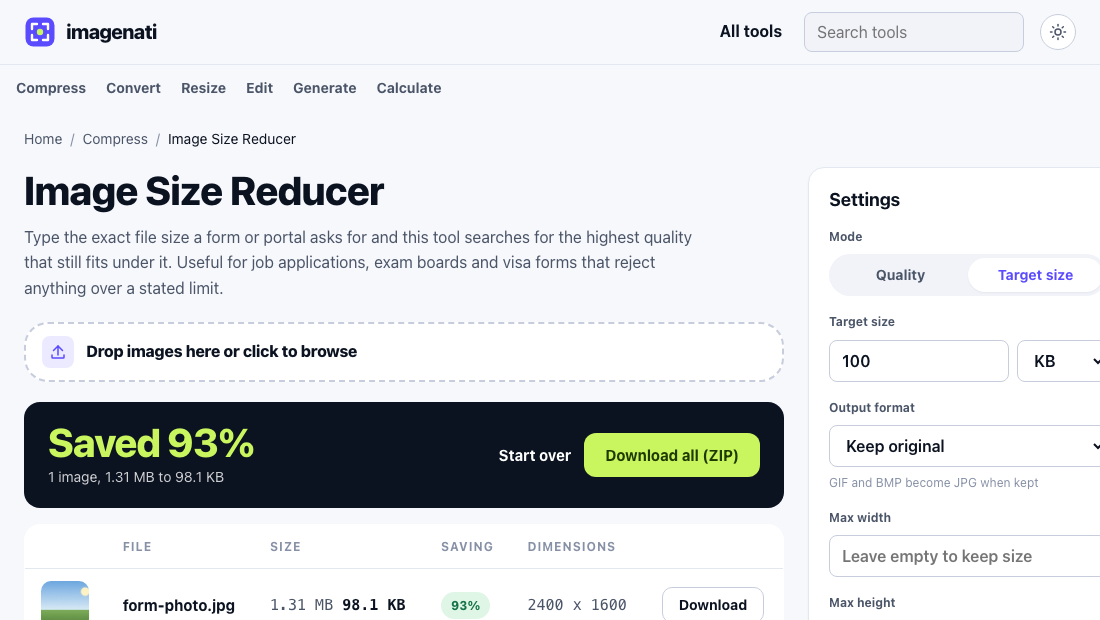
Type 100 in the Image Size Reducer's target size field, drop in your photo, and download the result: the tool searches for the highest quality that still lands under 100 KB, usually within a few percent of the limit, so you are not guessing at a quality slider. A typical phone photo, several megabytes straight out of the camera, reduces to under 100 KB with no visible quality loss at normal viewing size. The rest of this guide covers why forms set this limit and what to do if a single photo genuinely will not fit.
Why 100 KB specifically
Job portals, exam boards, government forms and visa applications set file size limits like 100 KB, 50 KB or 200 KB because many of these systems were built years ago on limited server storage, and the limit was never raised even as camera photos grew from a few hundred kilobytes to several megabytes. A modern phone photo commonly runs 2 to 8 MB straight out of the camera, twenty to eighty times over a 100 KB limit, which is why almost everyone hits this wall at some point rather than it being a rare edge case.
The good news is that a 100 KB target is very achievable without the photo looking noticeably compressed, since 100 KB is still a meaningful amount of data for a photo displayed at the modest pixel size most of these forms actually need, typically not much larger than a passport photo or a small ID photo on screen.
How the target search actually works
Rather than a single fixed quality setting, the tool runs a search: it encodes the image at a starting quality, checks the resulting file size against your 100 KB target, and adjusts up or down until it lands on the highest quality that still fits under the limit. If quality reduction alone cannot reach a very small target, it steps the pixel dimensions down as well and searches again at the smaller size, rather than pushing quality so low the image turns blotchy. This is why the result usually looks better than manually dragging a quality slider down until the file size happens to be small enough, since a manual guess tends to either overshoot the target unnecessarily or undershoot it and look worse than it needed to.
What if 100 KB genuinely cannot be reached
Most ordinary photos reach 100 KB, or even much smaller targets like 20 or 50 KB, without trouble. A target this size becomes hard to reach only for a very large, extremely detailed source image, where quality has to drop low enough to look genuinely soft even after the tool also shrinks the pixel dimensions. In that case the tool reports that it could not reach the target cleanly rather than returning a broken or unreadable file, and the practical fix is to start from a less extreme source image (crop out unnecessary background first, for instance) rather than fighting the compressor.
Tips specific to a form photo
- Crop tightly to just the subject before compressing. A form usually wants a face or a document, not the room around it, and a tighter crop means less detail the compressor has to preserve.
- Save as JPG if the form does not specify a format. JPG's lossy compression reaches a small target at a much higher visible quality than PNG for the same file size.
- Check the form's exact requirement before uploading. Some ask for kilobytes, some for megabytes, and a few specify both a minimum and a maximum, which the Image Size Reducer's target mode handles either way.
- If the same photo needs to go on several forms with different limits, run it through the reducer once per limit rather than trying to find one size that satisfies all of them.
Where this limit actually shows up
The pattern repeats across a lot of unrelated systems: a government job portal's photo upload, a university admission form, a professional exam board's candidate registration, a visa or passport application's supporting documents, and plenty of older company HR systems still running on infrastructure from a decade or more ago. None of these are asking for a small file because small is somehow better; they are asking because the limit was set once, a long time ago, and nobody has revisited it since. Treat the number as a fixed constraint to work around rather than a meaningful quality target in itself, since a photo that meets it and a photo that comfortably exceeds it can look identical to the eye.
A note on very small targets
Some exam boards and government portals in South Asia specifically ask for extremely small targets, 20 KB or even 10 KB. These are reachable the same way, just with a lower quality ceiling and, more often, some reduction in pixel dimensions as well. The result at 20 KB will not hold up to close zooming, but that is not what these forms check; they check whether the file uploads and whether a reviewer can tell it is a real, recognisable photo, both of which a properly target-compressed small file still satisfies.
If the form specifically asks for PNG
A small number of older forms specifically request a PNG rather than accepting JPG, which makes a small target noticeably harder, since PNG shrinks by reducing the colour palette rather than by discarding fine detail the way JPG does. The Image Size Reducer still handles this the same way, target size mode works for any input format, but expect PNG to reach a given KB target at a lower visible quality than the equivalent JPG would, and expect the tool to lean more heavily on shrinking pixel dimensions to hit a strict target when the source has to stay PNG. If the form only says image file rather than naming PNG specifically, JPG is almost always the better choice for reaching a small target cleanly.